
Azure Arc Ghost Registrations: Detection and Cleanup at Enterprise Scale
2025-12-06 · ~19 min read · Updated 2026-02-05
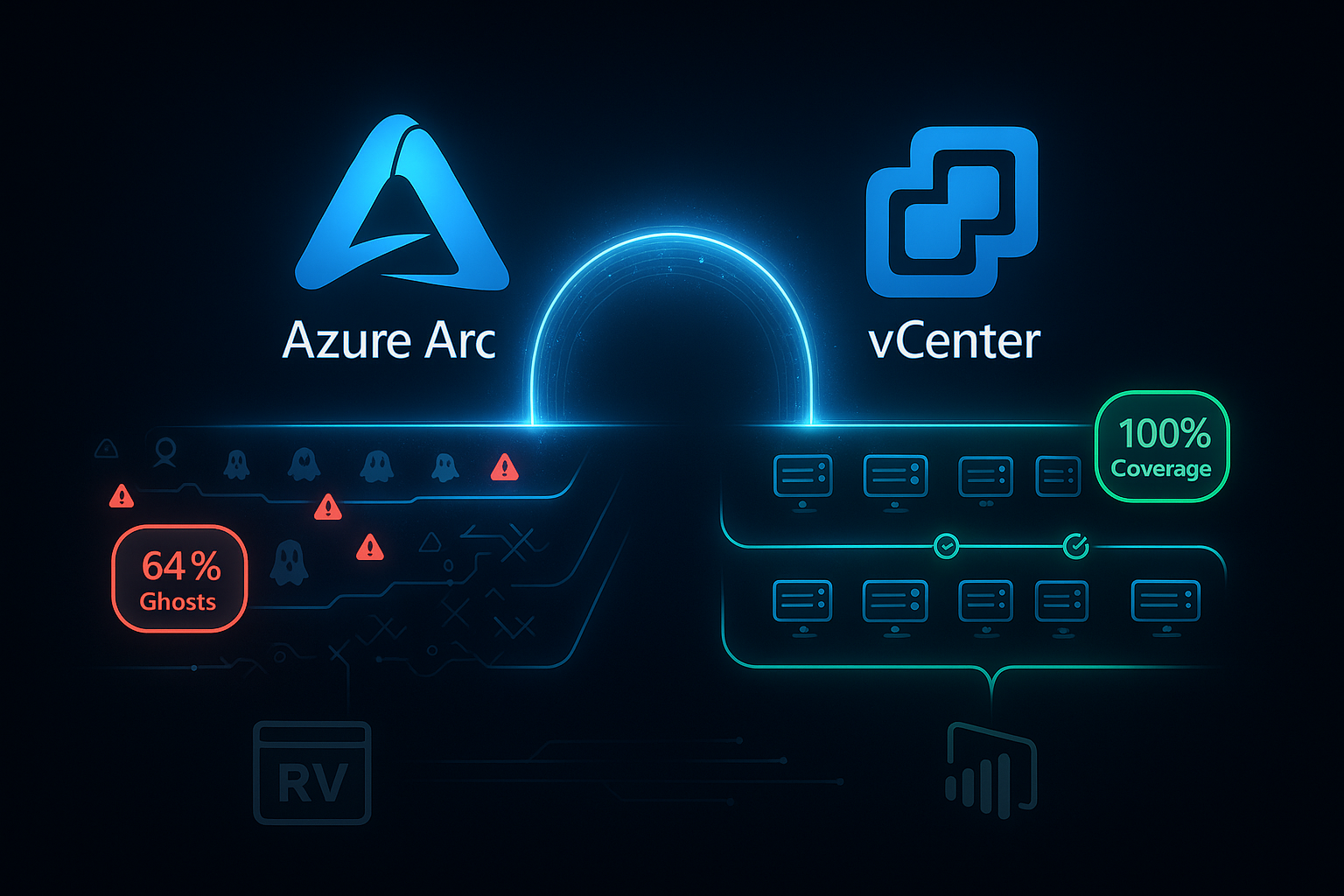
Azure Arc ghost registrations occur when VMs are deleted from VMware without Arc cleanup. At 64% ghost rate (300 of 467 Arc VMs non-existent), inventory becomes unusable for governance and ESU compliance. Includes RVTools reconciliation method, PowerShell cleanup scripts, and Arc Resource Bridge deployment guide for automatic lifecycle sync with vCenter.
This guide is part of our KQL Mastery hub covering query patterns, optimization techniques, and real-world Azure Resource Graph examples.
Azure Arc Ghost Registrations: Why 64% of My Arc Inventory Doesn't Exist
I ran a reconciliation between Azure Arc and our VMware environment using RVTools. The results were shocking: 64% of our Arc inventory consisted of ghost registrations for VMs that no longer exist.
This isn't an operational failure. It's an architectural limitation that affects every enterprise using manual Arc agent deployment.
Here's what I found, why it happens, and how Microsoft's Arc Resource Bridge solves it.
The Reconciliation Results
Azure Arc Inventory:
- 467 registered machines
- Single subscription and resource group
VMware Reality (via RVTools):
- 1,017 VMs across 3 vCenters
- Production: 587 VMs
- Non-Production: 374 VMs
- Lab: 56 VMs
The Gap:
- 300 Arc registrations = Ghost VMs (machines deleted from VMware but still registered in Arc)
- 850 VMware VMs = Missing from Arc (machines created after Arc deployment)
- 167 VMs matched (16.4% actual coverage)
64% of my Arc inventory was fake.
Why This Happens: Static vs Dynamic Registration
The root cause is simple: manual Arc agent deployment creates a static snapshot, not a dynamic sync.
The Static Registration Model (Pre-November 2023)
Before Microsoft introduced Arc Resource Bridge, the only way to onboard VMware VMs to Azure Arc was manual agent installation:
- Administrator logs into VM (RDP/SSH)
- Downloads Arc agent installer
- Runs installation script
- Arc agent registers with Azure
- VM appears in Azure Arc inventory
This creates a point-in-time snapshot.
The Arc agent knows nothing about vCenter. When VMs are created, deleted, renamed, or migrated in VMware, Arc doesn't know:
| VMware Event | Arc Result (Static) |
|---|---|
| VM Created | ❌ Never appears in Arc |
| VM Deleted | ❌ Ghost registration stays |
| VM Renamed | ❌ Arc keeps old name |
| VM Migrated | ❌ Arc shows wrong location |
| VM Powered Off | ⚠️ May appear as "Disconnected" |
Your Arc inventory freezes on installation day.
My Environment: Proof of Static Drift
I deployed Arc agents approximately 6-8 months ago. Since then:
VMs Created (Never Got Arc):
- 850 VMs added to VMware environment
- None automatically onboarded to Arc
- Arc coverage: 16.4%
VMs Deleted (Became Ghosts):
- 300 VMs decommissioned from VMware
- Arc registrations never cleaned up
- Ghost rate: 64% of Arc inventory
VMs with Expired Agents:
- 285 Arc agents expired (61% of registered VMs)
- No automatic updates
- Manual intervention required for each
Cost Allocation Disaster:
- All Arc VMs in one resource group
- No tags for cost center allocation
- Finance can't track ESU spending by application
The Power BI Dashboard: Visualizing the Gap
I built a Power BI dashboard to reconcile Arc inventory against VMware reality:
Data Sources:
1. RVTools Export - Production, Non-Prod, and Lab vCenters
2. Azure Resource Graph - Arc machine inventory
3. Azure Arc API - Agent status and versions
Key Measures:
Total VMs = COUNTROWS(master)
Arc Coverage % = DIVIDE([VMs With Arc], [Total VMs], 0)
Ghost VMs = CALCULATE(COUNTROWS(arc_machines),
    ISBLANK(RELATED(master[VM])))
KPI Cards:
- Total VMs: 961 (excluding templates)
- VMs with Arc: 167 (17.4%)
- VMs without Arc: 794 (82.6%)
- Ghost Registrations: 300 (64% of Arc inventory)
- Server 2012 ESU Gap: 78 VMs (37.5% at risk)
The dashboard exposed what Excel reconciliation hinted at: my Arc inventory was a lie.
November 2023: Microsoft's Solution
On November 9, 2023, Microsoft announced general availability of Azure Arc-enabled VMware vSphere, introducing Arc Resource Bridge as the foundation for vCenter integration.
This fundamentally changed how Arc works with VMware.
The Dynamic Registration Model (Arc Resource Bridge)
Arc Resource Bridge is a virtual appliance that connects directly to vCenter Server:
vCenter (Source of Truth)
   ↓
Arc Resource Bridge (Sync Engine)
   ↓
Azure Arc (Always Current)
From Microsoft's documentation:
"When a VMware vCenter Server is connected to Azure, an automatic discovery of the inventory of vSphere resources is performed. This inventory data is continuously kept in sync with the vCenter Server."
Lifecycle events sync in real-time:
| VMware Event | Arc Result (Dynamic) |
|---|---|
| VM Created | ✅ Auto-registers in minutes |
| VM Deleted | ✅ Auto-deregisters from Azure |
| VM Renamed | ✅ Updates name in Azure |
| VM Migrated | ✅ Updates location metadata |
| VM Powered Off | ✅ Updates power state |
Arc inventory stays synchronized with vCenter reality.
Static vs Dynamic: The Key Difference
Installation Day (Both Models Look Identical)
Manual Arc Agents:
- 467 VMs in VMware
- 467 Arc registrations
- 100% coverage ✅
Arc Resource Bridge:
- 467 VMs in VMware
- 467 Arc registrations
- 100% coverage ✅
6 Months Later (Massive Divergence)
Manual Arc Agents (Static):
- 1,017 VMs in VMware (550 added)
- 467 Arc registrations (unchanged)
- 300 ghosts (deleted VMs)
- 167 valid registrations (16.4% coverage) ❌
Arc Resource Bridge (Dynamic):
- 1,017 VMs in VMware
- 1,017 Arc registrations (auto-synced)
- 0 ghosts (auto-cleaned)
- 1,017 valid registrations (100% coverage) ✅
The gap grows daily with static registration.
Why Most Enterprises Have This Problem
If you deployed Arc using any of these methods, you have static registration:
- Manual installation on individual VMs
- PowerShell scripts that ran once
- Group Policy that deployed agents
- SCCM/Intune packages for agent deployment
- Terraform/ARM templates that deployed agents
None of these maintain sync with vCenter.
You took a snapshot on deployment day. Since then, your Arc inventory has diverged from reality.
The Cost of Static Registration
1. False Compliance Reporting
Server 2012 ESU Example:
- Arc shows 78 Server 2012 VMs without ESU
- But 64% of Arc inventory is ghosts
- Actual compliance status: Unknown
You're reporting on ghost inventory.
2. Wasted Azure Spending
Arc agent costs:
- 300 ghost registrations × $X/month
- Paying for machines that don't exist
Extension costs:
- Azure Monitor agents on ghosts
- Defender agents on ghosts
- Update Management on ghosts
3. Operational Overhead
Manual maintenance burden:
- 285 expired agents requiring updates
- No automated lifecycle management
- Monthly cleanup scripts required
- Ghost detection and removal
4. Lost Cost Allocation
Finance nightmare:
- All VMs in one resource group
- No cost center tags
- Can't allocate ESU costs by application
- Chargeback impossible
Arc Resource Bridge: Technical Architecture
What Gets Deployed
Per vCenter Instance:
- Arc Resource Bridge (virtual appliance)
- 4 vCPUs, 16 GB RAM, 100 GB disk
- Deployed as OVA template
- Runs on Linux (Microsoft-provided)
Network Requirements:
- Outbound HTTPS (443) to Azure
- Access to vCenter API (443)
- No inbound access required
- No guest OS credentials needed
How It Works
- Connection Phase:
- Arc Resource Bridge deployed to vCenter
- Connects using vCenter credentials
-
Creates Azure custom location
-
Discovery Phase:
- Bridge queries vCenter API
- Discovers all VMs, templates, networks, datastores
-
Projects inventory to Azure Arc
-
Sync Phase (Continuous):
- Monitors vCenter events
- Detects VM create/delete/modify
-
Updates Azure Arc in near real-time
-
Lifecycle Management:
- VM created → Auto-registers in Arc
- VM deleted → Auto-removes from Arc
- VM renamed → Updates Arc metadata
- Tags synced: vCenter → Azure
Deployment Guide
Prerequisites
Following Microsoft's deployment guide:
vCenter Requirements:
- vCenter Server 7.0 or higher
- Account with privileges to:
- Read all inventory
- Deploy and update VMs
- Resource pool: 16 GB RAM, 4 vCPUs minimum
- Datastore: 100 GB free space
Azure Requirements:
- Subscription with Owner/Contributor role
- Resource group for Arc resources
- Network connectivity to Azure
Jump Box Setup:
You'll need a Windows management VM to run the deployment script. I documented this setup in my Azure Arc Private Lab post.
Quick jump box setup:
# Install Azure CLI
winget install -e --id Microsoft.AzureCLI

# Install PowerShell 7
winget install --id Microsoft.Powershell --source winget

# Install Arc CLI extension
az extension add --name arcappliance
az extension add --name connectedvmware

# Login to Azure
az login --use-device-code
Deployment Steps
1. Download Onboarding Script
From Azure Portal:
- Navigate to Azure Arc
- Select VMware vCenters (under Infrastructure)
- Click Add
- Choose Create a new resource bridge
- Download the onboarding script
2. Run Deployment Script
From your jump box:
# Set execution policy
Set-ExecutionPolicy -Scope Process -ExecutionPolicy Bypass

# Run onboarding script
.\resource-bridge-onboarding-script.ps1
3. Provide Configuration
Script will prompt for:
- vCenter FQDN/IP
- vCenter username/password
- Resource pool selection
- Network selection
- Datastore selection
- IP address range for appliance
4. Wait for Deployment
The script will:
- Download Arc Resource Bridge OVA
- Upload to vCenter
- Deploy appliance VM
- Configure networking
- Connect to Azure
- Begin inventory discovery
Timeline: 30-60 minutes depending on network speed.
5. Validate Deployment
Check Azure Portal:
- Arc Resource Bridge resource created
- Custom location created
- vCenter resource created
- VM inventory begins appearing
Migration Strategy: Static to Dynamic
Week 1: Deploy Arc Resource Bridge
Per vCenter Instance:
1. Deploy Arc Resource Bridge (Production)
2. Deploy Arc Resource Bridge (Non-Production)
3. Deploy Arc Resource Bridge (Lab)
4. Validate connectivity to each vCenter
Validation:
- Bridge appliance VM running in vCenter
- Bridge status "Online" in Azure Portal
- Custom location created successfully
Week 2: Sync and Compare
Let Bridge Discover Inventory:
- Wait 24-48 hours for full discovery
- Bridge will create Arc representations for all VMs
- New resource groups based on tags/policy
Reconcile:
// Compare old Arc (manual) vs new Arc (bridge)
Resources
| where type == "microsoft.hybridcompute/machines"
| extend RegistrationType = iff(tags["Source"] == "Manual", "Manual", "Bridge")
| summarize count() by RegistrationType
Expected:
- Manual (old): 467 registrations
- Bridge (new): 1,017 registrations
- Overlap: 167 VMs in both
Week 3: Clean Up Ghosts
Identify Ghosts:
# Get all manual Arc registrations
$manualArc = Get-AzConnectedMachine | Where-Object {
    $_.Tags["Source"] -eq "Manual"
}

# Get all Bridge registrations
$bridgeArc = Get-AzConnectedMachine | Where-Object {
    $_.Tags["Source"] -ne "Manual"
}

# Find ghosts (in manual Arc but not in Bridge)
$ghosts = $manualArc | Where-Object {
    $vm = $_
    -not ($bridgeArc | Where-Object { $_.Name -eq $vm.Name })
}

Write-Host "Ghost count: $($ghosts.Count)"
Delete Ghosts:
# Backup ghost list
$ghosts | Export-Csv -Path "arc-ghosts-backup.csv" -NoTypeInformation

# Delete ghosts
foreach ($ghost in $ghosts) {
    Write-Host "Deleting ghost: $($ghost.Name)"
    Remove-AzConnectedMachine `
        -ResourceGroupName $ghost.ResourceGroupName `
        -Name $ghost.Name `
        -Confirm:$false
}
Week 4: Cutover
Disable Manual Onboarding:
- Remove Arc deployment scripts from automation
- Delete GPOs that install Arc agents
- Update runbooks to use Bridge-managed VMs
Validate:
- Arc inventory matches VMware inventory
- All new VMs auto-register via Bridge
- Deleted VMs auto-remove from Arc
- Tags sync from vCenter to Azure
Optional - Remove Old Arc Agents:
Arc Resource Bridge and Arc Connected Machine agents can coexist. You can:
- Keep agents: For advanced features (software inventory, updates)
- Remove agents: If only using Bridge for inventory/lifecycle
Most environments keep both.
The Results: Static vs Dynamic
Before (Static Manual Arc)
Inventory:
- 467 Arc registrations
- 300 ghosts (64%)
- 167 valid (36%)
- Coverage: 16.4%
Operations:
- Manual agent updates (285 expired)
- Monthly ghost cleanup scripts
- No cost allocation tags
- 850 VMs missing Arc coverage
Finance:
- One resource group for all Arc VMs
- No cost center attribution
- ESU chargeback impossible
After (Dynamic Arc Resource Bridge)
Inventory:
- 1,017 Arc registrations
- 0 ghosts (0%)
- 1,017 valid (100%)
- Coverage: 100%
Operations:
- Automatic lifecycle sync
- No ghost cleanup needed
- Policy-driven tagging
- All VMs covered by Arc
Finance:
- Resource groups by application/cost center
- Automated tag inheritance from vCenter
- ESU costs allocated properly
- Chargeback enabled
Arc Resource Bridge vs Manual Agents
Can They Coexist?
YES. Arc Resource Bridge (vCenter-level) and Arc Connected Machine agents (VM-level) serve different purposes:
| Capability | Arc Resource Bridge | Arc Connected Machine Agent |
|---|---|---|
| VM Lifecycle Sync | ✅ Automatic | ❌ Manual |
| Inventory Management | ✅ vCenter-based | ❌ Per-VM |
| Ghost Prevention | ✅ Auto-cleanup | ❌ Manual cleanup |
| Tag Inheritance | ✅ From vCenter | ❌ Manual tagging |
| Software Inventory | ⚠️ Basic | ✅ Detailed |
| Update Management | ⚠️ Limited | ✅ Full featured |
| Script Execution | ❌ No | ✅ Yes |
| Guest Credentials | ❌ Not required | ✅ Required |
Recommended Approach
Tier 1: All VMs
- Deploy Arc Resource Bridge
- Get lifecycle management, inventory sync, cost allocation
- No guest credentials required
Tier 2: Critical VMs
- Add Arc Connected Machine agents
- Enable software inventory, update management, security
- Requires guest OS credentials
Most enterprises use both.
Maintenance Requirements
Arc Resource Bridge requires ongoing maintenance:
Version Support:
- Supported: Latest and previous 3 versions (n-3)
- Recommended: Upgrade every 6 months
- Process: Manual upgrade command
Upgrade Process:
# Check current version
az arcappliance show --resource-group <rg> --name <bridge-name>

# Check available upgrades
az arcappliance get-upgrades --resource-group <rg> --name <bridge-name>

# Perform upgrade
az arcappliance upgrade vmware --config-file <config.yaml>
Upgrade Time: 30-90 minutes
Downtime: Brief intermittent during handoff (few minutes)
Release notes track versions and features.
Cost Analysis
From Microsoft's GA announcement:
"There aren't any additional charges to connect your VMware vSphere resources in Azure by enabling them with Azure Arc. Azure Arc provides select inventory and VM provisioning capabilities for free."
What's Free:
- Arc Resource Bridge deployment
- vCenter connection and sync
- VM inventory projection
- Lifecycle management
- Basic monitoring
What Costs Money:
- Azure Monitor (if enabled)
- Microsoft Defender (if enabled)
- Update Management (if enabled)
- Extended Security Updates (ESU)
- Arc Connected Machine agents (for advanced features)
ROI Calculation:
Eliminated Costs (Annual):
- Ghost VM charges: 300 VMs × $X/month
- Manual cleanup: 20 hours/month × $Y/hour
- Expired agent remediation: 40 hours/quarter × $Y/hour
New Capabilities (Value):
- Accurate compliance reporting
- Cost allocation to business units
- ESU chargeback
- Azure Migrate integration for future migrations
Lessons Learned
1. Arc Inventory Requires Reconciliation
Don't trust your Arc inventory without validation:
- Export Arc inventory monthly
- Compare against VMware reality (RVTools)
- Track coverage percentage over time
- Monitor ghost accumulation
2. Static Registration Degrades Over Time
Manual Arc deployment is inherently static:
- Coverage decreases as new VMs are added
- Ghosts accumulate as VMs are deleted
- Requires active lifecycle management
3. Arc Resource Bridge is Preventive, Not Reactive
Bridge prevents ghost accumulation:
- Don't deploy Bridge to clean up ghosts
- Deploy Bridge to prevent future ghosts
- Clean up existing ghosts separately
4. COTS Environments Benefit Most
If your environment is mostly COTS (commercial off-the-shelf software):
- You don't need GitHub Copilot code analysis
- You don't need deep dependency mapping
- Arc Resource Bridge + manual tagging = sufficient
- Vendor documentation > automated discovery
5. Start With Jump Box
A proper jump box setup is critical:
- Azure CLI, PowerShell, Arc extensions installed
- Network access to vCenter and Azure
- Credentials stored in Azure Key Vault
- See my Arc lab setup guide
Check Your Own Environment
When did you deploy Arc agents?
Run this reconciliation:
Step 1: Export Arc Inventory
# Get all Arc machines
Connect-AzAccount
$arcVMs = Get-AzConnectedMachine

# Export to CSV
$arcVMs | Select-Object Name, ResourceGroupName, Location, Status,
    LastStatusChange, AgentVersion, OSType |
    Export-Csv -Path "arc-inventory.csv" -NoTypeInformation

Write-Host "Arc VMs: $($arcVMs.Count)"
Step 2: Export VMware Inventory
Use RVTools:
1. Download and install RVTools
2. Connect to each vCenter
3. Export "vInfo" tab to Excel
4. Combine all vCenter exports
Step 3: Reconcile
# Load both inventories
$arcVMs = Import-Csv "arc-inventory.csv"
$vmwareVMs = Import-Csv "rvtools-export.csv"

# Find ghosts (in Arc but not in VMware)
$ghosts = $arcVMs | Where-Object {
    $arcVM = $_
    -not ($vmwareVMs | Where-Object { $_.VM -eq $arcVM.Name })
}

# Find missing (in VMware but not in Arc)
$missing = $vmwareVMs | Where-Object {
    $vmVM = $_
    -not ($arcVMs | Where-Object { $_.Name -eq $vmVM.VM })
}

# Calculate coverage
$coverage = ($arcVMs.Count - $ghosts.Count) / $vmwareVMs.Count * 100

Write-Host "Total VMware VMs: $($vmwareVMs.Count)"
Write-Host "Total Arc VMs: $($arcVMs.Count)"
Write-Host "Ghosts: $($ghosts.Count) ($(($ghosts.Count / $arcVMs.Count * 100).ToString('0.0'))%)"
Write-Host "Missing: $($missing.Count)"
Write-Host "Coverage: $($coverage.ToString('0.0'))%"
Step 4: Visualize (Optional)
Build a Power BI dashboard:
- Import both CSVs
- Create relationships on VM name
- Build KPI cards for ghosts, coverage, missing
- Add slicers for environment, OS, cluster
I'll publish my Power BI template on GitHub soon.
The Bottom Line
If you deployed Arc manually, your inventory is probably frozen in time.
The solution isn't better cleanup scripts or more frequent reconciliation.
The solution is architectural: Arc Resource Bridge.
It transforms Arc from a static snapshot to a dynamic sync, eliminating ghost registrations at the source.
Microsoft introduced this capability in November 2023. If you're still using manual Arc deployment, you're running the old model.
Check your environment. Reconcile your inventory. I bet you have ghosts too.
Resources
Microsoft Documentation:
- Azure Arc-enabled VMware vSphere Overview
- Arc Resource Bridge Overview
- Quick Start: Connect vCenter to Arc
- GA Announcement (Nov 2023)
- Release Notes
- Pricing
My Posts:
- Azure Arc Private Lab Setup - Jump box configuration
Tools:
- RVTools - VMware inventory export
- Power BI Desktop - Reconciliation dashboard (template coming soon)
📋 Related: Azure Arc Enterprise Readiness Checklist
Deploying Arc at enterprise scale? Download the complete pre-deployment checklist covering governance, networking, cost planning, and vCenter integration to prevent ghost registrations from day one.
Download Free Checklist (PDF) | Excel Version
Questions? Spot an error? Let me know in the comments below.
Published: December 6, 2025
🎯 Ready for Production-Ready Queries?
This guide covers the basics, but scaling to 30,000+ resources requires battle-tested patterns.
The Complete KQL Query Library includes:
- ✅ 48 copy-paste ready queries (VMs, networking, security, cost)
- ✅ Advanced joins (VMs → NICs → Disks → Subnets → Subscriptions)
- ✅ Enterprise-scale tested on 31,000+ resources
- ✅ Performance optimization for massive environments
- ✅ SQL to KQL translation guide
- ✅ Lifetime updates
Launch price: $19 (regular $29)
Get the Complete KQL Library →
Azure Admin Starter Kit (Free Download)
Get my KQL cheat sheet, 50 Windows + 50 Linux commands, and an Azure RACI template in one free bundle.
Get the Starter Kit →🚀 Azure Admin Starter Kit
Get the KQL cheat sheet, 50 Windows + 50 Linux commands, and Azure RACI template in one free bundle. Built from managing 44 subscriptions and 31,000+ resources.
Get the Starter Kit →Free download • No email required • Instant access