
I Scraped the Azure Periodic Table to Build a Service Dictionary (And You Can Use It)
2025-10-29 · ~14 min read
The Azure Periodic Table is beautiful but not programmatically useful. So I scraped 200+ services into a PowerShell dictionary. Now my inventory tool shows service descriptions, naming conventions, and cost tiers.
Last week I published an Azure Service Inventory Tool.
This guide is part of our Azure Governance hub covering policy enforcement, compliance frameworks, and enterprise controls.
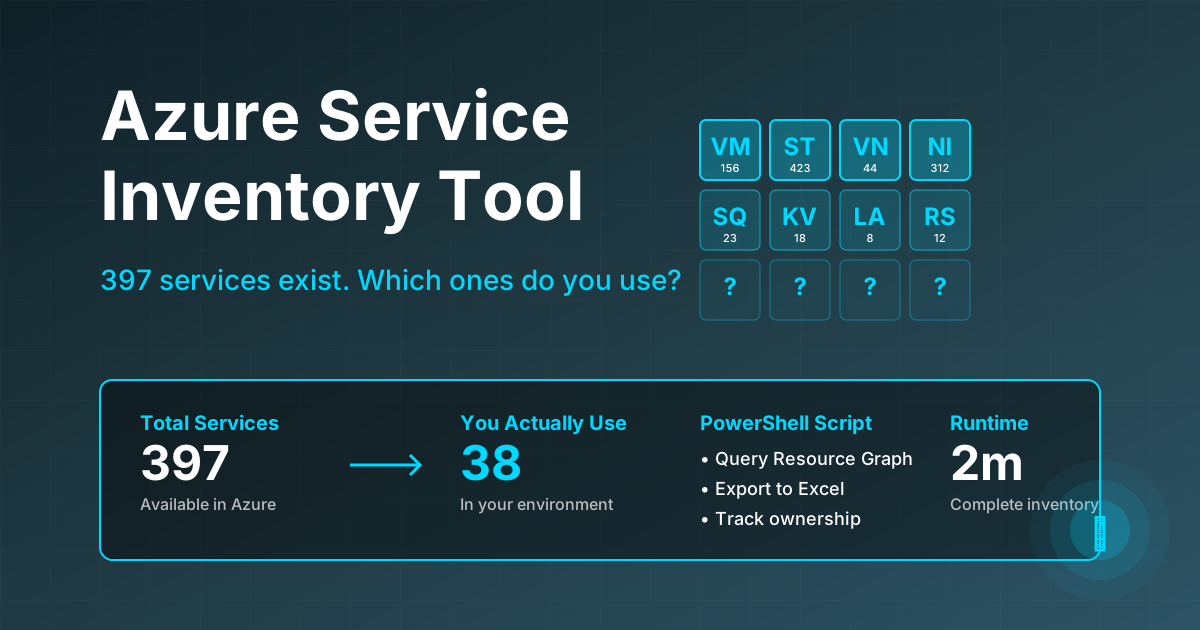
It worked. It told you which of the 397 Azure services you're actually using.
But the output looked like this:
ServiceType         Count
virtualmachines     156
storageaccounts     423
networkinterfaces   8234
Not very helpful.
What's a "virtualmachine"? Should it be named vmw- or vm-? Is this expensive?
The Azure Periodic Table has all this information:
- Service descriptions
- Naming conventions
- Categories
- Icons
But it's a website. I needed it programmatically.
So I scraped it.
What the Scraped Data Looks Like
Here's what I extracted from the Azure Periodic Table - the "Excel spreadsheet" with all the metadata:
| Service Name | Resource Type | Category | Description | Naming | Cost |
|---|---|---|---|---|---|
| Virtual Machine | virtualmachines | Compute | On-demand, high-scale, secure infrastructure | vmw-/vml- | High |
| Storage Account | storageaccounts | Storage | Secure, scalable, durable cloud storage | st- | Medium |
| Virtual Network | virtualnetworks | Networking | Private network in Azure | vnet- | Low |
| Key Vault | keyvaults | Security | Securely store and access secrets | kv- | Low |
| SQL Server | servers | Databases | Fully managed relational database | sql- | High |
| App Service | sites | Web + Mobile | Fully managed web application platform | app- | Medium |
| Network Security Group | networksecuritygroups | Networking | Security rules for network traffic | nsg- | Free |
| Managed Disk | disks | Storage | Block-level storage volumes | disk- | Medium |
| Function App | functionapps | Compute | Serverless compute service | func- | Low |
| Load Balancer | loadbalancers | Networking | Load balancing for traffic | lbi-/lbe- | Medium |
| AKS Cluster | managedclusters | Containers | Managed Kubernetes service | aks- | High |
| Container Registry | registries | Containers | Store container images | cr- | Medium |
| Cosmos DB | databaseaccounts | Databases | Globally distributed database | cosmos- | High |
| Application Gateway | applicationgateways | Networking | Web traffic load balancer | agw- | High |
| Azure Firewall | azurefirewalls | Security | Highly available firewall | afw- | High |
That's just 15 services. The full dictionary has 200+ services with this same structured data.
This is the value - you can now programmatically look up:
- ✅ Service descriptions (what it does)
- ✅ Naming conventions (how to name it)
- ✅ Categories (where it fits)
- ✅ Cost tiers (relative expense)
All from a simple PowerShell hashtable.
The Problem: Great Reference, Not Operational
The Azure Periodic Table is gorgeous.
It catalogs all 397 Azure services with:
- One-line descriptions
- Recommended naming prefixes (mg-, rg-, vnet-, st-)
- Service categories (Compute, Networking, Storage)
- Official Microsoft icons
Think of it as "Excel spreadsheet as a web page with Azure icons and definitions".
Great for:
- ✅ Learning what services exist
- ✅ Quick reference lookup
- ✅ Finding naming conventions
- ✅ Downloading icons for documentation
Terrible for:
- ❌ Knowing what YOU'RE using
- ❌ Programmatic access
- ❌ Enriching your tools
- ❌ Automation
I wanted both. Reference data + operational data.
So I scraped the site and built a reusable service dictionary.
What I Scraped
From https://www.azureperiodictable.com/, I extracted:
200+ Azure services with metadata:
- Service name (e.g., "Virtual Machine")
- Resource type (e.g., "virtualmachines")
- Category (Compute, Networking, Storage, etc.)
- Description (1-2 sentences explaining what it does)
- Naming prefix (recommended naming convention)
- Cost tier estimate (Free, Low, Medium, High)
The scraping command:
# PowerShell web scraping
$url = "https://www.azureperiodictable.com/"
$scrapedContent = Invoke-WebRequest -Uri $url
Then parsed the HTML to extract structured data for each service.
The Service Dictionary
I converted the scraped data into a PowerShell hashtable for easy programmatic access:
$AzureServiceDictionary = @{
    'virtualmachines' = @{
        Name = 'Virtual Machine'
        Category = 'Compute'
        Description = 'On-demand, high-scale, secure, virtualized infrastructure'
        Prefix = 'vmw-/vml-'
        Provider = 'Microsoft.Compute'
        CostTier = 'High'
    }

    'storageaccounts' = @{
        Name = 'Storage Account'
        Category = 'Storage'
        Description = 'Secure, scalable, durable cloud storage solution'
        Prefix = 'st-'
        Provider = 'Microsoft.Storage'
        CostTier = 'Medium'
    }

    'virtualnetworks' = @{
        Name = 'Virtual Network'
        Category = 'Networking'
        Description = 'Private network in Azure for resource communication'
        Prefix = 'vnet-'
        Provider = 'Microsoft.Network'
        CostTier = 'Low'
    }

    'keyvaults' = @{
        Name = 'Key Vault'
        Category = 'Security'
        Description = 'Securely store and access secrets'
        Prefix = 'kv-'
        Provider = 'Microsoft.KeyVault'
        CostTier = 'Low'
    }

    # ... 196 more services
}
Now I can do this:
# Look up any service programmatically
$service = $AzureServiceDictionary['virtualmachines']

Write-Host "Service: $($service.Name)"
Write-Host "Category: $($service.Category)"
Write-Host "Description: $($service.Description)"
Write-Host "Naming: $($service.Prefix)"
Write-Host "Cost: $($service.CostTier)"
Output:
Service: Virtual Machine
Category: Compute
Description: On-demand, high-scale, secure, virtualized infrastructure
Naming: vmw-/vml-
Cost: High
Enhanced Inventory Tool
I updated the original inventory tool to use the dictionary.
Before (Original Tool):
ServiceType         Count   Provider
virtualmachines     156     Microsoft.Compute
storageaccounts     423     Microsoft.Storage
networkinterfaces   8234    Microsoft.Network
Useful, but requires manual lookup to understand what each service is.
After (Enhanced with Dictionary):
DisplayName          Category    Description                              Count  Prefix    CostTier
Virtual Machine      Compute     On-demand, high-scale infrastructure     156    vmw-/vml- High
Storage Account      Storage     Secure, scalable cloud storage           423    st-       Medium
Network Interface    Networking  Interconnection between VM and VNet      8234   nic-      Free
Much better.
Now I know:
- What each service IS (description)
- How to NAME it (prefix)
- What it COSTS (tier)
- Where it FITS (category)
All without manual lookup.
The Enhanced Tool
Here's how the updated inventory script uses the dictionary:
# Import service dictionary
. "$PSScriptRoot\Azure-Service-Dictionary.ps1"

# Query all resource types (same as original tool)
$results = Search-AzGraph -Query $query -Subscription $subscriptionScope

# Enrich with dictionary data
$inventory = $results | ForEach-Object {
    $serviceType = $_.ServiceType.ToLower()

    # Look up in dictionary
    $metadata = $AzureServiceDictionary[$serviceType]

    # Use metadata if available
    [PSCustomObject]@{
        DisplayName = if ($metadata) { $metadata.Name } else { $_.ServiceType }
        Category = if ($metadata) { $metadata.Category } else { 'Other' }
        Description = if ($metadata) { $metadata.Description } else { '' }
        NamingPrefix = if ($metadata) { $metadata.Prefix } else { '' }
        CostTier = if ($metadata) { $metadata.CostTier } else { 'Unknown' }
        Count = $_.Count
        # ... more columns
    }
}
Key changes:
1. Import the service dictionary
2. Look up each service type
3. Add enriched columns (Description, NamingPrefix, CostTier)
4. Flag services on the Periodic Table vs custom/preview
What You Get
Running the enhanced tool against my 44 subscriptions:
📊 INVENTORY SUMMARY
═══════════════════════════════════════════════════

TOTAL SERVICES IN USE: 38 (out of 397 Azure services)
TOTAL RESOURCES: 31,247
ON PERIODIC TABLE: 36
NOT ON PERIODIC TABLE: 2

📁 BY CATEGORY:
   Networking: 12 service types (12,341 resources)
   Compute: 8 service types (8,156 resources)
   Storage: 4 service types (6,234 resources)
   Databases: 3 service types (892 resources)
   Monitoring: 4 service types (287 resources)
   Security: 3 service types (156 resources)

💰 BY COST TIER:
   High: 8 service types (9,782 resources)
   Medium: 14 service types (15,234 resources)
   Low: 12 service types (5,891 resources)
   Free: 4 service types (340 resources)

🔝 TOP 10 SERVICES BY RESOURCE COUNT:
   Network Interface (NIC)       8,234 resources
   Managed Disk                  4,156 resources
   Virtual Machine               3,890 resources
   Public IP Address             2,341 resources
   Storage Account               1,892 resources
CSV output includes:
| DisplayName | Category | Description | Count | Prefix | CostTier |
|---|---|---|---|---|---|
| Virtual Machine | Compute | On-demand infrastructure | 156 | vmw-/vml- | High |
| Storage Account | Storage | Secure cloud storage | 423 | st- | Medium |
| Virtual Network | Networking | Private network | 44 | vnet- | Low |
Open in Excel. Filter. Sort. Pivot. Now operational.
Practical Use Cases
Use Case 1: Naming Convention Validation
Check if resources follow your naming standards:
# Get expected prefix
$resourceType = 'storageaccounts'
$expectedPrefix = $AzureServiceDictionary[$resourceType].Prefix  # 'st-'

# Query actual resources
$storageAccounts = Search-AzGraph -Query @"
Resources
| where type =~ 'microsoft.storage/storageaccounts'
| project name
"@

# Check compliance
foreach ($account in $storageAccounts) {
    if (-not $account.name.StartsWith('st')) {
        Write-Warning "$($account.name) doesn't follow convention: $expectedPrefix"
    }
}
Use Case 2: Cost Optimization
Focus on high-cost services first:
# Get all high-cost services
$highCostServices = $AzureServiceDictionary.GetEnumerator() |
    Where-Object { $_.Value.CostTier -eq 'High' }

Write-Host "HIGH-COST SERVICES IN YOUR ENVIRONMENT:"
$highCostServices | ForEach-Object {
    Write-Host "  - $($_.Value.Name)"
}
Use Case 3: Documentation Generation
Auto-generate service catalog:
$markdown = "# Our Azure Service Catalog`n`n"

foreach ($category in ($usedServices | Group-Object Category)) {
    $markdown += "## $($category.Name)`n`n"

    foreach ($service in $category.Group) {
        $markdown += "### $($service.DisplayName)`n"
        $markdown += "**Description:** $($service.Description)`n`n"
        $markdown += "**Naming:** ``$($service.NamingPrefix)``*`n`n"
    }
}
Use Case 4: New Admin Onboarding
Give new Azure admins the enriched inventory:
"Here are the 38 services we use (out of 397). Each has a description. Start with the Top 10 - they're 92% of our resources."
Much better than:
- Reading 397 service pages
- Guessing what "privateendpoints" means
- Learning naming from inconsistent examples
Services NOT on the Periodic Table
The tool flags services not in the dictionary:
⚠️  SERVICES NOT ON PERIODIC TABLE:
   - customresourceproviders (4 resources)
   - avsprivateclouds (1 resource)
These are either:
- Custom resource providers
- Preview services (not yet cataloged)
- Legacy services (deprecated)
- Partner services (third-party)
Good to know what's "off the map".
The Complete Dictionary
The full dictionary includes 200+ Azure services across:
Management: Management Groups, Subscriptions, Resource Groups, Policies
Networking: VNets, Subnets, NSGs, Load Balancers, Firewalls, Front Door
Compute: VMs, App Service, Functions, AVD, AKS
Databases: SQL, MySQL, PostgreSQL, Cosmos DB, Redis
Storage: Storage Accounts, Disks, Snapshots
AI/ML: Machine Learning, Cognitive Services, OpenAI, Bot Service
Analytics: Synapse, Databricks, Data Factory, Event Hubs
Security: Key Vault, Firewall, WAF
And more...
Each service includes:
- Display name
- Category
- Description
- Naming prefix
- Cost tier
- Provider namespace
How to Use It
Download from GitHub
git clone https://github.com/your-username/azure-noob-blog.git
cd azure-noob-blog/tools
Files:
- Azure-Service-Dictionary.ps1 - Complete service metadata
- Get-AzureServiceInventory-Enhanced.ps1 - Enhanced tool
- README.md - Documentation
Run the Enhanced Tool
Connect-AzAccount

# Run against all subscriptions
.\Get-AzureServiceInventory-Enhanced.ps1

# Or specific subscription
.\Get-AzureServiceInventory-Enhanced.ps1 -SubscriptionId "your-sub-id"
Use in Your Scripts
# Import the dictionary
. "$PSScriptRoot\Azure-Service-Dictionary.ps1"

# Use it
$service = $AzureServiceDictionary['keyvaults']
Write-Host "Key Vaults: $($service.Prefix)*"
Why This Matters
The Azure Periodic Table is beautiful.
But beauty isn't operational.
As a reference: Great for learning and lookup
As structured data: Great for automation and tools
Scraping it bridges the gap.
Now my inventory tool doesn't just tell me what I have.
It tells me:
- What it IS (descriptions)
- What to NAME it (conventions)
- What it COSTS (tiers)
- Where it FITS (categories)
That's operational.
The Real Insight
Microsoft says there are 397 Azure services.
After running this on 44 subscriptions:
I use 38 services (9.6% of Azure)
Top 10 = 92% of my resources
The other 359? Marketing.
The Periodic Table makes Azure look overwhelming.
This tool makes it manageable.
Download the Tools
GitHub: azure-noob-blog/tools
Blog Posts:
- Part 1: Azure Service Inventory Tool
- Part 2: Scraping the Periodic Table
Requirements:
- PowerShell 5.1+ or Core 7+
- Az.ResourceGraph module
- Azure Reader access
Questions? Leave a comment.
Want more automation? Check out azure-noob.com for practical Azure operations content.
Azure Admin Starter Kit (Free Download)
Get my KQL cheat sheet, 50 Windows + 50 Linux commands, and an Azure RACI template in one free bundle.
Get the Starter Kit →🚀 Azure Admin Starter Kit
Get the KQL cheat sheet, 50 Windows + 50 Linux commands, and Azure RACI template in one free bundle. Built from managing 44 subscriptions and 31,000+ resources.
Get the Starter Kit →Free download • No email required • Instant access