
Operational Intelligence: Using Azure Tags for Instant Answers (2025)
2025-12-17 · ~24 min read
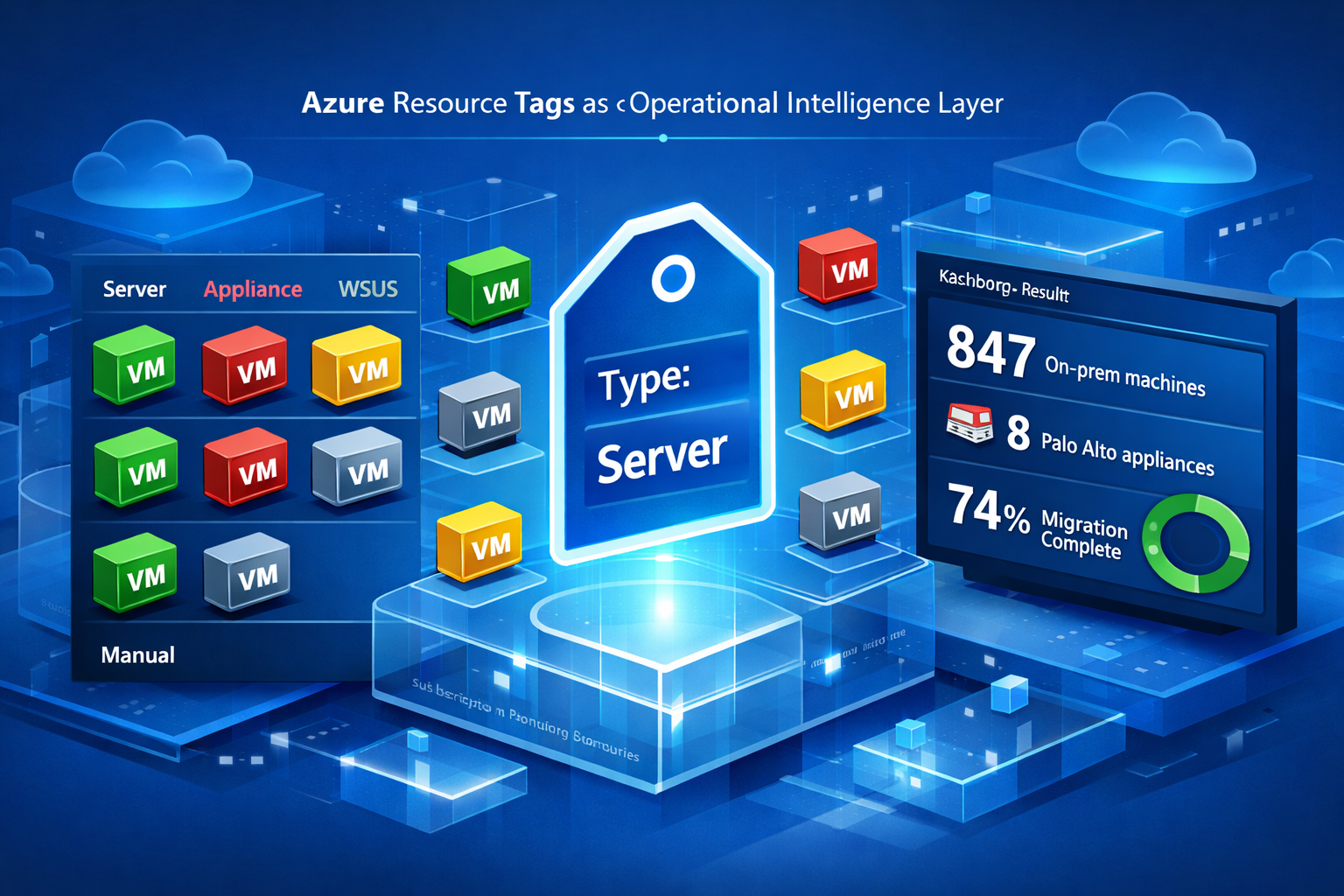
Azure tags evolved from preventing Azure Update Manager disasters to becoming our operational intelligence layer. The Type tag excludes appliances from automated patching while enabling instant answers to executive questions about on-prem footprint, vendor inventory, and migration progress. Policy enforcement in Deny mode, tag-based filtering workflows, and KQL queries that answer 'how many machines on-prem?' in 30 seconds instead of manual 3-day inventory projects.
Azure Tags for Operational Intelligence: How We Answer Executive Questions in 30 Seconds Instead of 3 Days
Short Answer
Azure tags prevent operational disasters by excluding appliances, WSUS-managed VMs, and manual-only systems from Azure Update Manager automated patching while simultaneously enabling instant operational intelligence queries. A Type tag with values (Server, Desktop, Appliance, WSUS, Manual, Exclude) combined with Azure Policy enforcement in Deny mode ensures no VM deploys without explicit patching designation. The same tags answer executive questions about on-prem machine count, vendor appliance inventory, migration progress, and cost allocation in 30-second KQL queries instead of 3-day manual inventory projects.
Why did we start tagging Azure resources?
Original problem: Azure Update Manager wanted to patch everything.
We opened the Azure Update Manager console and saw 1,791 VMs flagged for updates. The dashboard showed every VM in our environment as a potential patching target.
The problem nobody warns you about:
Azure Update Manager doesn't distinguish between:
- ✅ Servers that should be patched by Azure
- ❌ Appliances that break if you patch them
- ❌ VMs still managed by on-prem WSUS during migration
- ❌ Vendor-managed systems with support contracts
- ❌ Compliance-hold VMs that cannot be modified
Microsoft's solution: "Just exclude them manually in the portal"
Reality with dozens of subscriptions: You need a systematic exclusion mechanism.
What happens if you patch the wrong VMs?
We didn't learn this the hard way - we prevented it.
But here's what happens when Azure Update Manager patches systems it shouldn't:
Azure Migrate appliances
Azure Migrate appliances are VMs running on-prem or in Azure that discover your environment for migration planning.
If Azure Update Manager patches them:
- OS updates modify system files
- Certificate rotation scripts expect specific file versions
- Certificate renewal fails after patching
- Appliance loses authentication to Azure
- Discovery stops
- 18 months of dependency mapping at risk
Recovery: Rebuild appliance, re-register, restart discovery (2-3 days lost)
Palo Alto firewall appliances
Palo Alto provides hardened firewall appliances as Azure VM images.
If Azure Update Manager patches them:
- Vendor image modified by OS updates
- Firewall behavior becomes undefined
- Security configurations potentially altered
- Vendor support response: "You modified the image, warranty void"
Recovery: Restore from backup, vendor charges for re-provisioning
VMs still on WSUS during migration
During migration, VMs move from on-prem to Azure but might still use on-prem WSUS via ExpressRoute.
If both WSUS and Azure Update Manager patch the same VM:
- Both systems schedule reboots independently
- Simultaneous reboots corrupt application state
- VM joins wrong update deployment
- Patch conflicts create instability
Recovery: Rebuild VM or restore from backup
Compliance-hold VMs
Some VMs are frozen for audit, legal hold, or compliance reasons.
If Azure Update Manager modifies them:
- Audit trail compromised
- Compliance violation
- Legal/regulatory consequences
Recovery: None - the violation is permanent in audit logs
How the Type tag prevents these disasters
We implemented one critical tag: Type
Azure Policy enforcement: Deny mode
{
  "if": {
    "allOf": [
      {
        "field": "type",
        "equals": "Microsoft.Compute/virtualMachines"
      },
      {
        "field": "tags['Type']",
        "exists": "false"
      }
    ]
  },
  "then": {
    "effect": "deny"
  }
}
What this does:
- Blocks VM creation without Type tag
- Forces decision: Should Azure Update Manager patch this?
- No "default to patch everything" behavior
- Makes patching strategy explicit
The Type tag values (patching designation)
When creating a VM, you must choose:
Type: Server              - Servers patched by Azure Update Manager
Type: Desktop             - Desktops (AUM or Intune)
Type: Appliance           - Never patch (vendor managed)
Type: WSUS                - Still on on-prem WSUS during migration
Type: Manual              - Manual patching only
Type: Exclude             - Do not modify (compliance hold)
This single tag answers: "Should Azure Update Manager touch this VM?"
Azure Update Manager filtering workflow
Step 1: Open Azure Update Manager console
Dashboard shows all VMs in your subscriptions (thousands of VMs across dozens of subscriptions).
Step 2: Apply filter
Filter by: Type = Server
Step 3: Safe patching scope
Dashboard now shows only VMs where:
- Type tag = Server
- Azure Update Manager should patch them
- No appliances visible
- No WSUS conflicts
- No compliance violations
Result: From 1,791 VMs → 348 servers (accurate patching scope)
Real operational scenario: Palo Alto firewall inventory
The security team question:
"How many Palo Alto firewall appliances do we have across all subscriptions?"
Before tags:
- Check each subscription manually
- Search for VMs with "firewall" or "palo" in name
- Hope naming conventions were followed
- 3 days of manual inventory work
Current state (Type tag only):
VM: PaloAlto-FW-01
Tags:
  Type: Appliance
  Owner: SecurityTeam@company.com
  CostCenter: IT-Security
What we can answer:
- ✅ Azure Update Manager won't patch it (safe)
- ❌ Can't easily inventory all Palo Alto appliances
- ❌ Can't track vendor responsibility
- ❌ Can't count appliances for license renewals
Better state (what we should implement):
VM: PaloAlto-FW-01
Tags:
  Type: Appliance
  Appliance: PaloAltoFirewall
  Vendor: PaloAlto
  Owner: SecurityTeam@company.com
  CostCenter: IT-Security
Query (30 seconds):
Resources
| where tags.Type == "Appliance"
| where tags.Vendor == "PaloAlto"
| summarize count() by subscriptionId, location
| project Subscription = subscriptionId, Location = location, Count = count_
Result:
- 8 Palo Alto appliances total
- 5 in EastUS, 3 in CentralUS
- Distributed across 3 subscriptions
This matters for:
- License renewals (8 appliances = how many licenses?)
- Vendor contract management (what are we paying for?)
- Security audits (inventory all security appliances)
- Support escalations (which appliances need vendor updates?)
Beyond patching: Tags as operational intelligence
We started tagging to prevent Azure Update Manager disasters.
We kept tagging because suddenly we could answer questions that used to take days.
Executive question: "How many machines are on-prem?"
Before tags:
- Check Azure Arc registrations
- Review ExpressRoute connectivity
- Query each subscription manually
- Cross-reference with on-prem inventory
- 2-3 days of work
After tags:
Resources
| where type == "microsoft.compute/virtualmachines"
| where tags.OnPrem == "Yes"
| summarize count()
Answer: 847 machines (30 seconds)
Executive question: "How many appliances by vendor?"
Before tags:
- Manual inventory across subscriptions
- Check naming conventions
- Review purchase orders
- Ask each team what they manage
- 3-5 days of coordination
After tags:
Resources
| where tags.Type == "Appliance"
| summarize Count = count() by tags.Vendor
| order by Count desc
Answer (30 seconds):
Vendor          Count
Microsoft       23    (Azure Migrate, Backup, Arc)
PaloAlto        8     (Firewalls)
Veeam           4     (Backup appliances)
Datadog         2     (Monitoring)
CFO question: "What's our migration progress from WSUS to Azure Update Manager?"
Before tags:
- Check WSUS server logs
- Review Azure Update Manager dashboard
- Compare lists manually
- Try to deduplicate
- 1-2 days of analysis
After tags:
Resources
| where type == "microsoft.compute/virtualmachines"
| where tags.Type in ("WSUS", "Server")
| summarize count() by tags.Type
Answer (30 seconds):
Type    Count
Server  348   (migrated to Azure Update Manager)
WSUS    124   (still on on-prem WSUS)

Migration: 74% complete
CTO question: "Show me our hybrid footprint"
Before tags:
- Azure Arc inventory
- ExpressRoute metrics
- VPN connection analysis
- Manual correlation
- 2-3 days
After tags:
Resources
| where type == "microsoft.compute/virtualmachines"
| summarize
    Azure = countif(tags.OnPrem == "No"),
    Hybrid = countif(tags.OnPrem == "Yes"),
    Unknown = countif(isempty(tags.OnPrem))
| extend Total = Azure + Hybrid + Unknown
Answer (30 seconds):
Azure-only:  1,244 VMs
Hybrid:        847 VMs
Unknown:        38 VMs (need tagging)
Total:       2,129 VMs

Hybrid footprint: 40%
Finance question: "What's our monthly cost for on-prem connectivity?"
Before tags:
- Review ExpressRoute bills
- Estimate VM overhead
- Guess network costs
- Build spreadsheet
- 1 week of analysis
After tags:
Resources
| where tags.OnPrem == "Yes"
| join kind=inner (
    ResourceContainers
    | where type == "microsoft.resources/subscriptions"
    | project subscriptionId, subscriptionName = name
) on subscriptionId
| extend costCenter = tags.CostCenter
| summarize VMCount = count() by costCenter, subscriptionName
| order by VMCount desc
Result: Breakdown by cost center showing hybrid VM distribution
Follow-up calculation: 847 VMs × average connectivity cost = monthly hybrid overhead
Our complete tag schema (operational intelligence layer)
We use 9 tags total:
Critical safety tag:
- Type - Patching designation
- Prevents Azure Update Manager disasters
- Enables patching inventory
- Policy enforced (Deny mode)
Cost allocation tags:
- CostCenter - Billing chargeback
- Application - Cost rollup by business app
- Owner - Accountability (email address)
Operational intelligence tags:
- Environment - Prod/Dev/Test
- Location - Physical/logical placement
- OnPrem - Hybrid connectivity status
- Desktop - OS category (boolean)
- Server - OS category (boolean)
Future improvement (vendor accountability):
- Appliance - Specific appliance type (not yet implemented)
- Vendor - Vendor responsibility (not yet implemented)
Policy enforcement: Why Deny mode matters
We tried Audit mode first.
Audit mode result:
- Policy flags non-compliance
- Doesn't block deployment
- VMs created without tags
- Everyone ignores the compliance report
Deny mode result:
- Policy blocks VM creation without Type tag
- Admin sees error: "Type tag required"
- Admin must choose: Server, Appliance, WSUS, Manual, Exclude
- No VMs slip through
Deny mode forces operational discipline at creation time.
Tag validation and audit queries
VMs without Type tag (policy violation)
Resources
| where type == "microsoft.compute/virtualmachines"
| where isempty(tags.Type)
| project name, resourceGroup, location, subscriptionId
If this returns results: Azure Policy isn't applied to all subscriptions
Appliances inventory (vendor responsibility)
Resources
| where type == "microsoft.compute/virtualmachines"
| where tags.Type == "Appliance"
| extend applianceType = coalesce(tags.Appliance, "Unknown")
| project name, applianceType, location, resourceGroup, tags.Owner
| sort by applianceType
Shows: All systems that vendors should patch, not us
Azure VMs still on WSUS (migration tracking)
Resources
| where type == "microsoft.compute/virtualmachines"
| where location contains "east" or location contains "central"
| where tags.Type == "WSUS"
| project name, location, tags.OnPrem, tags.Location
| order by location
Shows: VMs in Azure still using on-prem WSUS (migration in progress)
VMs eligible for Azure Update Manager
Resources
| where type == "microsoft.compute/virtualmachines"
| where tags.Type == "Server"
| summarize count() by location, tags.Environment
| order by count_ desc
Shows: Accurate scope for Azure Update Manager deployments
On-prem vs Azure-only distribution
Resources
| where type == "microsoft.compute/virtualmachines"
| summarize count() by tags.OnPrem, subscriptionDisplayName
| order by subscriptionDisplayName, tags_OnPrem
Shows: Hybrid footprint by subscription
Cost by application (cross-subscription)
Resources
| where type == "microsoft.compute/virtualmachines"
| extend app = tags.Application, cc = tags.CostCenter
| summarize VMCount = count() by app, cc
| where isnotempty(app)
| order by VMCount desc
Shows: VM distribution by business application for cost allocation
Other operational tags (supporting cast)
Desktop vs Server (patch schedules)
Why it matters:
- Desktops: Can reboot during business hours (less disruptive)
- Servers: Require maintenance windows (change control)
Usage:
Resources
| where tags.Type == "Server"
| where tags.Server == "Yes"
| project name, location
// These need maintenance windows
Location (physical/logical grouping)
Why it matters:
- Tracks where resources are during migration
- Helps coordinate hybrid patching
- Useful for disaster recovery planning
Usage:
Resources
| where tags.Location == "DataCenter-East"
| where tags.OnPrem == "Yes"
| summarize count() by type
// On-prem resources in specific data center
OnPrem (connectivity status)
Why it matters:
- Hybrid resources need different patching paths
- Migration progress tracking
- Cost allocation for connectivity
Usage:
Resources
| where tags.OnPrem == "Yes"
| where tags.Type == "Server"
| project name, tags.Location
// Hybrid servers still connected to on-prem
Environment (maintenance windows)
Why it matters:
- Production systems need change control
- Dev/Test can be patched more aggressively
- Different backup retention policies
Usage:
Resources
| where tags.Environment == "Production"
| where tags.Type == "Server"
| summarize count() by location
// Production servers requiring change windows
What we got right and what we'd improve
What works (implemented):
✅ Type tag prevents disasters
- Azure Update Manager can't touch appliances
- No double-patching conflicts with WSUS
- No compliance violations on frozen VMs
✅ Policy enforcement (Deny mode)
- No VMs created without Type tag
- Operational discipline at creation time
- No "we forgot to tag it" scenarios
✅ Tag-based filtering in Azure Update Manager
- Filter: Type = Server
- Accurate patching scope (348 servers, not 1,791 VMs)
- Safe to deploy patches at scale
✅ Operational intelligence queries
- "How many machines on-prem?" → 30 seconds
- "Migration progress?" → 30 seconds
- "Appliances by vendor?" → 30 seconds
What we'd improve (not yet implemented):
📋 Add Appliance subtag for inventory
Current:
Type: Appliance
(no additional detail)
Better:
Type: Appliance
Appliance: AzureMigrate
Vendor: Microsoft
Why: Can query appliances by type, track vendor responsibilities
Query we wish we could run:
Resources
| where tags.Type == "Appliance"
| summarize count() by tags.Vendor, tags.Appliance
| order by count_ desc
📋 Add Vendor tag for accountability
Current: No clear owner for appliance updates
Better:
Type: Appliance
Vendor: PaloAlto
Owner: SecurityTeam@company.com
Why: Know who's responsible for patching what
Query we wish we could run:
Resources
| where tags.Type == "Appliance"
| where tags.Vendor == "PaloAlto"
| project name, location, tags.Owner
// All Palo Alto appliances and their owners
What Microsoft should provide (but doesn't)
Azure Update Manager should natively:
- Detect known appliance types automatically (Azure Migrate, Backup, Arc)
- Warn before patching vendor appliances
- Provide "exclude by tag" configuration in UI
- Show "safe to patch" vs "requires review" categories
Instead, Microsoft provides:
- Shows all VMs as potential patch targets
- No warnings about appliances
- No built-in exclusion categories
- Manual filtering only
Tags fill the gap Microsoft leaves.
The bigger pattern: Tags as infrastructure
Most organizations tag for:
- Cost allocation (finance requirement)
- Compliance (audit requirement)
We tag for:
- ✅ Cost allocation
- ✅ Compliance
- ✅ Operational safety (prevent patching disasters)
- ✅ Operational intelligence (answer questions instantly)
Tags aren't metadata.
Tags are infrastructure.
Production lessons learned
1. Deny mode enforcement is essential
Audit mode doesn't work:
- People ignore compliance reports
- VMs created without tags
- Patching scope becomes inaccurate
- Operational intelligence queries fail
Deny mode works:
- Forces decision at creation time
- No VMs slip through
- Tag quality remains high
2. Simple tag schemas scale better than complex ones
We started with 9 required tags.
Reality: Only 3-5 tags get consistently used.
Core tags (actually enforced):
- Type (patching designation)
- CostCenter (billing)
- Application (cost rollup)
- Owner (accountability)
Optional tags (recommended but not enforced):
- Environment, Location, OnPrem, Desktop, Server
The lesson: Enforce the critical few, recommend the rest.
3. Tag-based queries replace manual inventory
Before tags:
- "How many VMs?" → Manual count across subscriptions
- "Migration progress?" → Compare WSUS logs to Azure
- "Vendor inventory?" → Ask each team
After tags:
- All questions answered with KQL queries
- 30 seconds instead of 3 days
- Data stays current (tags updated at creation)
4. Tags enable automation at scale
Azure Update Manager filtering:
- Type = Server → Safe patching scope
- Type = Appliance → Excluded automatically
Logic App automation:
- Type = Appliance → Include in certificate monitoring
- Type = WSUS → Alert when in Azure (migration tracking)
Policy targeting:
- Environment = Production → Stricter backup retention
- OnPrem = Yes → Include in hybrid monitoring
How to implement this in your environment
Step 1: Define your Type tag values
Minimum viable schema:
Type: Server      - Azure Update Manager patches this
Type: Appliance   - Never patch (vendor managed)
Type: Manual      - Manual patching only
Expand as needed:
Type: Desktop     - Intune or AUM for desktops
Type: WSUS        - Still on on-prem WSUS
Type: Exclude     - Compliance hold / do not modify
Step 2: Create Azure Policy (Deny mode)
{
  "policyRule": {
    "if": {
      "allOf": [
        {
          "field": "type",
          "equals": "Microsoft.Compute/virtualMachines"
        },
        {
          "field": "tags['Type']",
          "exists": "false"
        }
      ]
    },
    "then": {
      "effect": "deny"
    }
  }
}
Assign to: All subscriptions
Result: No VM creation without Type tag
Step 3: Tag existing VMs
Query existing VMs without Type tag:
Resources
| where type == "microsoft.compute/virtualmachines"
| where isempty(tags.Type)
| project name, resourceGroup, location
Tag in bulk via PowerShell:
# Example: Tag all VMs in a resource group
$vms = Get-AzVM -ResourceGroupName "Production-Servers"
foreach ($vm in $vms) {
    Update-AzTag -ResourceId $vm.Id -Tag @{Type="Server"} -Operation Merge
}
Review appliances manually:
- Azure Migrate appliances → Type: Appliance
- Backup appliances → Type: Appliance
- Vendor appliances → Type: Appliance
- Frozen VMs → Type: Exclude
Step 4: Configure Azure Update Manager filtering
- Open Azure Update Manager
- Apply filter:
Type = Server - Verify appliances excluded
- Deploy patches to filtered scope
Step 5: Build operational intelligence queries
Save these queries in Azure Resource Graph:
// Dashboard: VM distribution by patching type
Resources
| where type == "microsoft.compute/virtualmachines"
| summarize count() by tags.Type
| order by count_ desc

// Dashboard: Hybrid footprint
Resources
| where type == "microsoft.compute/virtualmachines"
| summarize count() by tags.OnPrem

// Dashboard: Migration progress (WSUS → AUM)
Resources
| where type == "microsoft.compute/virtualmachines"
| where tags.Type in ("WSUS", "Server")
| summarize count() by tags.Type
What executive questions can you answer now?
Before tags:
- "How many machines on-prem?" → 3 days of manual inventory
- "How many appliances?" → Ask each team individually
- "Migration progress?" → Compare disconnected systems
- "Cost by application?" → Build spreadsheet from bills
After tags:
- "How many machines on-prem?" → 30 seconds (KQL query)
- "How many appliances?" → 30 seconds (KQL query)
- "Migration progress?" → 30 seconds (KQL query)
- "Cost by application?" → 30 seconds (KQL query)
Tags transform Azure from infrastructure into intelligence.
🛑 Ownership of Intelligence
Who answers the executive questions? The person with the data.
Download the Azure RACI Matrix to empower your Operations team with defined reporting responsibilities.
Related operational challenges
This post covered: Tag-based operational intelligence for patching, inventory, and migration tracking
Next challenges:
- Certificate expiration monitoring (automated Logic App solution)
- Azure Migrate 18-month limitation (appliance lifecycle management)
- Azure Update Manager reality check (why 77% of VMs are unsupported)
The pattern: Operational reality requires automation, tags, and queries that Microsoft doesn't provide out of the box.
Azure Admin Starter Kit (Free Download)
Get my KQL cheat sheet, 50 Windows + 50 Linux commands, and an Azure RACI template in one free bundle.
Get the Starter Kit →📊 Stop Rewriting the Same KQL Queries
Get 45+ production-ready KQL queries for Azure Resource Graph, Log Analytics, and Activity Logs. Copy-paste ready with comments and business context.
Download Complete Query LibraryPDF format • No email required • Instant download