
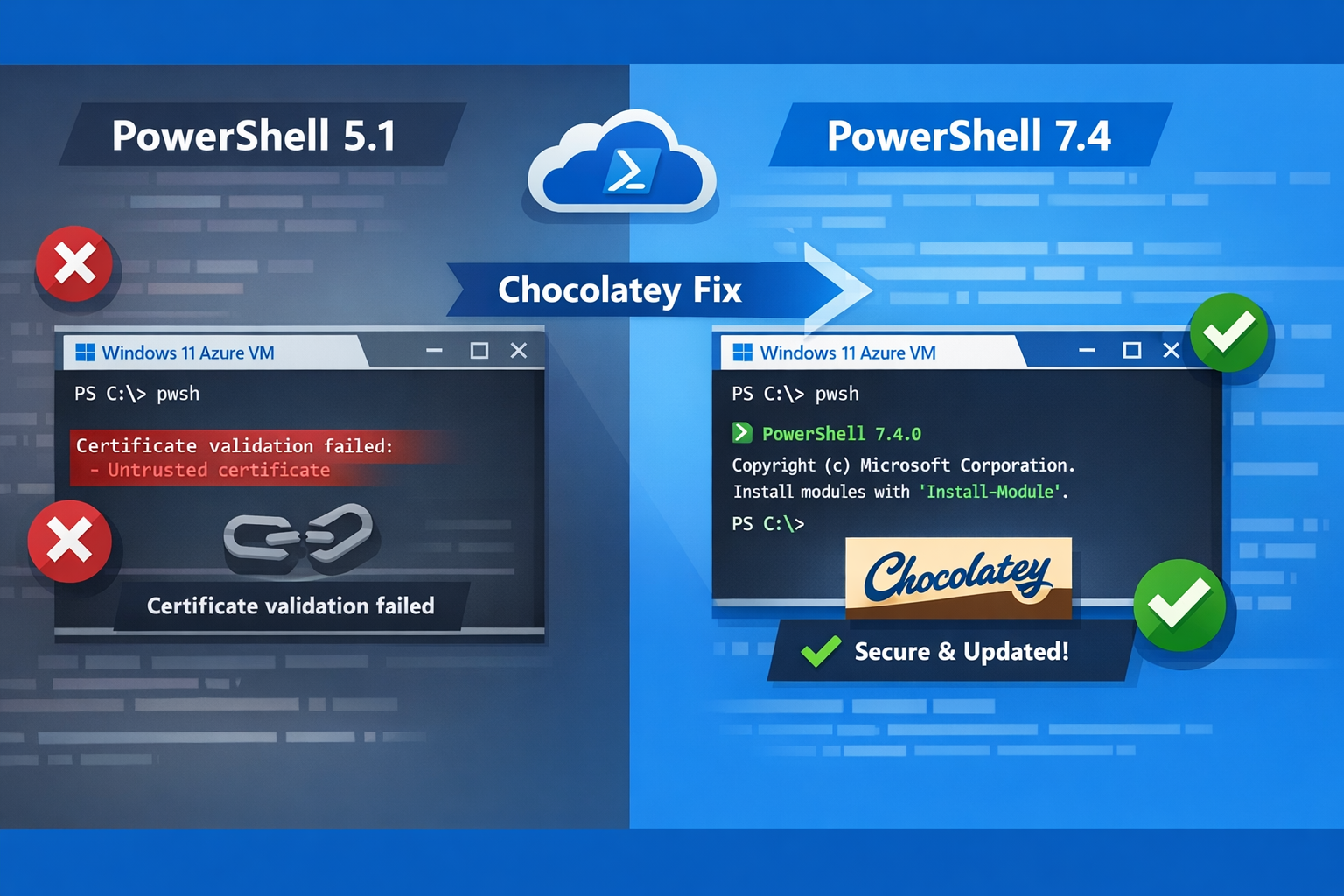
Azure Marketplace VMs Ship with Broken winget - Use Chocolatey Instead
2026-01-22 · ~18 min read
Fresh Windows 11 Enterprise N VMs from Azure Marketplace have broken winget dependencies. Here's the Chocolatey automation that actually works.
Short Answer
Fresh Windows 11 Enterprise N VMs from Azure Marketplace ship with winget v1.19 and VCLibs 14.0.30704.0, which creates an unresolvable dependency loop. You can't use winget to install packages on a fresh marketplace VM. The solution: use Chocolatey instead. It bypasses all Microsoft dependency issues and works immediately on fresh VMs.
Get the complete automation script: ⭐ GitHub: azure-admin-workstation-setup
The Problem: Microsoft's Dependency Loop
You spin up a fresh Windows 11 Enterprise N VM from Azure Marketplace. You try to install PowerShell 7 with winget:
winget install Microsoft.PowerShell
Error: Certificate validation failures.
You check the versions:
winget --version
# v1.19.21121.1

Get-AppxPackage *VCLibs* | Select Name, Version
# Microsoft.VCLibs.140.00  14.0.30704.0
The dependency chain:
- Your VM has winget v1.19 (ships with marketplace image)
- winget v1.19 has broken certificate validation
- To fix it, you need to update App Installer
- App Installer requires VCLibs 14.0.33728.0 or higher
- Your VM has VCLibs 14.0.30704.0
- Microsoft's download URLs only provide VCLibs 14.0.33321.0
- Even if you manually install that, it's still too old
You're stuck in a dependency loop on a fresh Azure VM.
This affects every Windows 11 Enterprise N VM from Azure Marketplace. It's been broken since late 2024.
Why This Matters: You Can't Bootstrap PowerShell 7
Here's the catch-22 that makes this dependency hell worse:
You need PowerShell 7 for modern Azure automation. Microsoft recommends it. Every new Azure CLI example uses it. PowerShell ISE is deprecated. Windows PowerShell 5.1 is in maintenance mode.
But you can't install PowerShell 7 on a fresh Azure VM using winget because winget is broken on fresh marketplace VMs.
The irony:
- Your VM ships with PowerShell 5.1 (Windows PowerShell)
- You try to install PowerShell 7 with: winget install Microsoft.PowerShell
- winget fails with certificate errors
- You're stuck on PowerShell 5.1
- Your modern Azure scripts don't work
Most Azure admins are still using PowerShell 5.1 and ISE because they can't easily bootstrap PowerShell 7 on fresh VMs.
This isn't just an inconvenience. It's blocking the entire Azure admin community from adopting modern tooling.
PowerShell 5.1 vs PowerShell 7: What You're Missing
PowerShell 5.1 (Windows PowerShell):
- Ships with Windows
- Last major update: 2016
- Windows-only
- ISE as default editor (deprecated)
- Missing modern features
PowerShell 7 (PowerShell Core):
- Cross-platform (Windows, Linux, macOS)
- Active development
- Parallel installation (doesn't replace 5.1)
- VSCode integration
- Modern syntax (ternary operators, null coalescing, pipeline chain operators)
- Better performance
- Required for new Azure modules
Microsoft's guidance: Use PowerShell 7 for all new Azure work.
Enterprise reality: Most admins are stuck on 5.1 because provisioning fresh VMs with PowerShell 7 is unnecessarily difficult.
The Bootstrap Problem
On a fresh Azure Marketplace VM:
# You start here (PowerShell 5.1)
$PSVersionTable.PSVersion
# Major: 5, Minor: 1

# You try to install PowerShell 7
winget install Microsoft.PowerShell
# ERROR: Certificate validation failed

# You try manual download
Invoke-WebRequest -Uri "https://github.com/PowerShell/PowerShell/releases/download/v7.4.1/PowerShell-7.4.1-win-x64.msi" -OutFile "PowerShell-7.msi"
Start-Process msiexec.exe -ArgumentList "/i PowerShell-7.msi /quiet" -Wait

# This works, but now you need to do this for every other tool manually
# VS Code? Manual download.
# Git? Manual download.
# Azure CLI? Manual download.
# Terraform? Manual download.
You end up spending 2-3 hours manually downloading and installing tools on every new admin workstation.
This is why Chocolatey matters. It solves the bootstrap problem.
Why This Happens
Microsoft's assumption: You're running Windows on physical hardware with Windows Update enabled.
Enterprise reality: You're running isolated VMs in Azure with Windows Update managed by WSUS or disabled entirely during initial provisioning.
The marketplace images are built months before you deploy them. By the time you provision a VM, the included winget version is outdated and the certificate chain has changed.
Microsoft provides no automated way to bootstrap the dependency chain on a fresh VM. You're expected to manually download and install components in the correct order.
This breaks infrastructure-as-code.
What Microsoft Expects You to Do
The "official" fix according to various GitHub issues and forums:
- Manually download VCLibs from Microsoft's site
- Install it with
Add-AppxPackage - Download App Installer
- Install it
- Download Desktop Runtime
- Install it
- Restart
- Try winget again
- (It still doesn't work)
I spent 4 hours going down this path. Every manual fix led to another dependency error.
The Solution: Chocolatey
Chocolatey is a Windows package manager that:
- Doesn't depend on App Installer
- Doesn't require VCLibs
- Works on fresh marketplace VMs with zero prerequisites
- Has been stable for 10+ years
Install Chocolatey:
Set-ExecutionPolicy Bypass -Scope Process -Force
[System.Net.ServicePointManager]::SecurityProtocol = `
    [System.Net.ServicePointManager]::SecurityProtocol -bor 3072
iex ((New-Object System.Net.WebClient).DownloadString(
    'https://community.chocolatey.org/install.ps1'))
Then install packages:
choco install -y powershell-core vscode git azure-cli terraform
It just works.
The Automated Setup Script
I packaged this into a complete Azure admin workstation setup script.
What it installs:
- PowerShell 7
- VS Code with Azure extensions
- Git, Python, Node.js
- Azure CLI, Azure Storage Explorer
- Terraform, Bicep
- Windows Terminal
- Docker Desktop
- Postman, 7-Zip, Notepad++
One command:
# Download the script
Invoke-WebRequest -Uri "https://raw.githubusercontent.com/dswann101164/azure-admin-workstation-setup/main/Setup-AzureAdminWorkstation-Chocolatey.ps1" -OutFile "Setup-AzureAdminWorkstation-Chocolatey.ps1"

# Run it
.\Setup-AzureAdminWorkstation-Chocolatey.ps1 -NoPrompts
Time to complete: 15-20 minutes (downloads + installs)
Manual steps required: Zero
Complete Script (with PowerShell 7 First)
<#
.SYNOPSIS
    Automated Azure admin workstation setup using Chocolatey
.DESCRIPTION
    Installs PowerShell 7 FIRST, then all other Azure admin tools.
    Works on fresh Azure Marketplace Windows VMs. Bypasses winget dependency issues.
.PARAMETER NoPrompts
    Skip all confirmation prompts (for automation)
.EXAMPLE
    .\Setup-AzureAdminWorkstation-Chocolatey.ps1 -NoPrompts
#>

[CmdletBinding()]
param(
    [switch]$NoPrompts
)

# Require admin
if (-NOT ([Security.Principal.WindowsPrincipal][Security.Principal.WindowsIdentity]::GetCurrent()).IsInRole([Security.Principal.WindowsBuiltInRole] "Administrator")) {
    Write-Error "This script requires administrative privileges. Run PowerShell as Administrator."
    exit 1
}

Write-Host "`n=== Azure Admin Workstation Setup (Chocolatey) ===" -ForegroundColor Cyan
Write-Host "Installing PowerShell 7 and modern Azure admin tools.`n" -ForegroundColor Gray

# Show current PowerShell version
Write-Host "Current PowerShell version: $($PSVersionTable.PSVersion)" -ForegroundColor Yellow
if ($PSVersionTable.PSVersion.Major -lt 7) {
    Write-Host "PowerShell 7 will be installed (required for modern Azure automation)`n" -ForegroundColor Cyan
}

if (-not $NoPrompts) {
    $confirm = Read-Host "Continue? (Y/N)"
    if ($confirm -ne 'Y') {
        Write-Host "Installation cancelled." -ForegroundColor Yellow
        exit 0
    }
}

# Install Chocolatey
Write-Host "`n[1/4] Installing Chocolatey package manager..." -ForegroundColor Cyan
if (-not (Get-Command choco -ErrorAction SilentlyContinue)) {
    Set-ExecutionPolicy Bypass -Scope Process -Force
    [System.Net.ServicePointManager]::SecurityProtocol = [System.Net.ServicePointManager]::SecurityProtocol -bor 3072
    try {
        Invoke-Expression ((New-Object System.Net.WebClient).DownloadString('https://community.chocolatey.org/install.ps1'))
        Write-Host "✓ Chocolatey installed successfully" -ForegroundColor Green
    }
    catch {
        Write-Error "Failed to install Chocolatey: $_"
        exit 1
    }
} else {
    Write-Host "✓ Chocolatey already installed" -ForegroundColor Green
}

# Refresh environment variables
$env:Path = [System.Environment]::GetEnvironmentVariable("Path","Machine") + ";" + [System.Environment]::GetEnvironmentVariable("Path","User")

# Install PowerShell 7 FIRST (most important)
Write-Host "`n[2/4] Installing PowerShell 7..." -ForegroundColor Cyan
Write-Host "  PowerShell 7 is required for modern Azure automation" -ForegroundColor Gray
choco install powershell-core -y --no-progress 2>&1 | Out-Null
if ($LASTEXITCODE -eq 0) {
    Write-Host "  ✓ PowerShell 7 installed" -ForegroundColor Green
    Write-Host "  After script completes, run: pwsh" -ForegroundColor Gray
} else {
    Write-Host "  ✗ PowerShell 7 installation failed" -ForegroundColor Red
}

# Core development tools
Write-Host "`n[3/4] Installing core development tools..." -ForegroundColor Cyan
$corePackages = @(
    'vscode',
    'git',
    'python',
    'nodejs'
)

foreach ($package in $corePackages) {
    Write-Host "  Installing $package..." -ForegroundColor Gray
    choco install $package -y --no-progress 2>&1 | Out-Null
    if ($LASTEXITCODE -eq 0) {
        Write-Host "  ✓ $package" -ForegroundColor Green
    } else {
        Write-Host "  ✗ $package (failed)" -ForegroundColor Red
    }
}

# Azure tools
Write-Host "`n[4/4] Installing Azure tools..." -ForegroundColor Cyan
$azurePackages = @(
    'azure-cli',
    'microsoft-windows-terminal',
    'azure-data-studio',
    'microsoftazurestorageexplorer',
    'terraform',
    'bicep'
)

foreach ($package in $azurePackages) {
    Write-Host "  Installing $package..." -ForegroundColor Gray
    choco install $package -y --no-progress 2>&1 | Out-Null
    if ($LASTEXITCODE -eq 0) {
        Write-Host "  ✓ $package" -ForegroundColor Green
    } else {
        Write-Host "  ✗ $package (failed)" -ForegroundColor Red
    }
}

# Optional tools
Write-Host "`nInstalling optional tools..." -ForegroundColor Cyan
$optionalPackages = @(
    'docker-desktop',
    'postman',
    '7zip',
    'notepadplusplus'
)

foreach ($package in $optionalPackages) {
    Write-Host "  Installing $package..." -ForegroundColor Gray
    choco install $package -y --no-progress 2>&1 | Out-Null
    if ($LASTEXITCODE -eq 0) {
        Write-Host "  ✓ $package" -ForegroundColor Green
    } else {
        Write-Host "  ✗ $package (skipped)" -ForegroundColor Yellow
    }
}

Write-Host "`n=== Setup Complete ===" -ForegroundColor Green
Write-Host "IMPORTANT: Launch PowerShell 7 by running: pwsh`n" -ForegroundColor Yellow

# Show PowerShell 7 verification
Write-Host "Verifying PowerShell 7 installation:" -ForegroundColor Cyan
try {
    $ps7Path = Get-Command pwsh -ErrorAction Stop
    Write-Host "  ✓ PowerShell 7 installed at: $($ps7Path.Source)" -ForegroundColor Green
    $ps7Version = & pwsh -NoProfile -Command '$PSVersionTable.PSVersion.ToString()'
    Write-Host "  ✓ Version: $ps7Version" -ForegroundColor Green
} catch {
    Write-Host "  ✗ PowerShell 7 not found (may require restart)" -ForegroundColor Yellow
}

# Show other installed versions
Write-Host "`nVerifying other installations:" -ForegroundColor Cyan
$checks = @{
    'Git' = { git --version }
    'Azure CLI' = { az --version | Select-Object -First 1 }
    'Terraform' = { terraform --version | Select-Object -First 1 }
}

foreach ($tool in $checks.Keys) {
    try {
        $version = & $checks[$tool]
        Write-Host "  ✓ $tool`: $version" -ForegroundColor Green
    }
    catch {
        Write-Host "  ✗ $tool`: Not found (may require restart)" -ForegroundColor Yellow
    }
}

Write-Host "`n=== Next Steps ===" -ForegroundColor Cyan
Write-Host "1. Close this PowerShell 5.1 window" -ForegroundColor Gray
Write-Host "2. Open PowerShell 7 by running: pwsh" -ForegroundColor Gray
Write-Host "3. Verify with: `$PSVersionTable.PSVersion" -ForegroundColor Gray
Write-Host "4. Install Azure PowerShell modules: Install-Module -Name Az -Repository PSGallery -Force`n" -ForegroundColor Gray
Download from GitHub: Setup-AzureAdminWorkstation-Chocolatey.ps1
Why Chocolatey Works (and winget Doesn't)
Chocolatey:
- Uses direct HTTPS downloads
- No dependency on Microsoft's App Installer infrastructure
- Simple executable wrappers
- Proven stable since 2011
winget:
- Depends on App Installer (UWP app)
- Requires specific VCLibs versions
- Certificate validation tied to Windows Update
- Breaks on isolated/offline systems
For enterprise Azure VMs where you control the provisioning pipeline, Chocolatey is more reliable.
The PowerShell 7 Migration Path
Once you have PowerShell 7 installed via Chocolatey, here's what changes:
Stop Using PowerShell ISE
PowerShell ISE (Integrated Scripting Environment) only works with PowerShell 5.1. It's deprecated. Microsoft stopped development in 2016.
Old workflow (PowerShell 5.1 + ISE):
# Open PowerShell ISE
ise.exe

# Your scripts use old syntax
$vm = Get-AzVM -Name "myvm"
if ($vm -ne $null) {
    # Do something
}
New workflow (PowerShell 7 + VS Code):
# Open VS Code with PowerShell extension
code .

# Your scripts use modern syntax
$vm = Get-AzVM -Name "myvm"
if ($vm) {  # Simplified null check
    # Do something
}

# Ternary operator (PowerShell 7+)
$status = $vm ? "Running" : "Stopped"

# Pipeline chain operators (PowerShell 7+)
Get-AzVM -Name "myvm" && Start-AzVM -Name "myvm" || Write-Error "VM not found"
Modern Azure Modules Require PowerShell 7
Many new Azure PowerShell modules target PowerShell 7:
# PowerShell 7 required
Install-Module -Name Az.App -Force  # Azure Container Apps
Install-Module -Name Az.DevCenter -Force  # Azure Dev Center
Install-Module -Name Az.ContainerInstance -Force  # Updated modules
If you're on PowerShell 5.1, you're missing entire Azure service modules.
Script Compatibility
Your existing PowerShell 5.1 scripts will run in PowerShell 7 (99% compatibility).
But: Some deprecated cmdlets don't work. Test your scripts after migration.
Common issues:
# PowerShell 5.1 - works
Invoke-WebRequest -UseBasicParsing

# PowerShell 7 - -UseBasicParsing is default, parameter deprecated
Invoke-WebRequest  # Just works

# PowerShell 5.1 - works
$PSVersionTable.CLRVersion

# PowerShell 7 - .NET Core doesn't expose CLRVersion
$PSVersionTable.PSVersion  # Use this instead
Running Both Side-by-Side
PowerShell 7 installs alongside PowerShell 5.1. Both remain available:
# Launch PowerShell 5.1 (Windows PowerShell)
powershell.exe

# Launch PowerShell 7
pwsh.exe
Your Azure admin workflow:
1. Use PowerShell 7 for all new scripts
2. Keep PowerShell 5.1 for legacy scripts that can't migrate
3. Gradually migrate old scripts to PowerShell 7
When You Actually Need winget
If you're managing end-user workstations with:
- Windows Update enabled
- Regular feature updates
- Public internet access
- Non-isolated environments
Then winget works fine and integrates better with Windows 11's package management.
For Azure infrastructure VMs, use Chocolatey.
Automating This in Your Deployment Pipeline
Terraform:
resource "azurerm_virtual_machine_extension" "setup" {
  name                 = "setup-workstation"
  virtual_machine_id   = azurerm_windows_virtual_machine.admin.id
  publisher            = "Microsoft.Compute"
  type                 = "CustomScriptExtension"
  type_handler_version = "1.10"

  settings = jsonencode({
    commandToExecute = "powershell -ExecutionPolicy Bypass -File Setup-AzureAdminWorkstation-Chocolatey.ps1 -NoPrompts"
  })

  protected_settings = jsonencode({
    fileUris = ["https://raw.githubusercontent.com/dswann101164/azure-admin-workstation-setup/main/Setup-AzureAdminWorkstation-Chocolatey.ps1"]
  })
}
ARM Template:
{
  "type": "Microsoft.Compute/virtualMachines/extensions",
  "name": "[concat(variables('vmName'), '/setup')]",
  "properties": {
    "publisher": "Microsoft.Compute",
    "type": "CustomScriptExtension",
    "typeHandlerVersion": "1.10",
    "settings": {
      "fileUris": [
        "https://raw.githubusercontent.com/dswann101164/azure-admin-workstation-setup/main/Setup-AzureAdminWorkstation-Chocolatey.ps1"
      ],
      "commandToExecute": "powershell -ExecutionPolicy Bypass -File Setup-AzureAdminWorkstation-Chocolatey.ps1 -NoPrompts"
    }
  }
}
Bicep:
resource setupExtension 'Microsoft.Compute/virtualMachines/extensions@2023-03-01' = {
  parent: adminVM
  name: 'setup-workstation'
  properties: {
    publisher: 'Microsoft.Compute'
    type: 'CustomScriptExtension'
    typeHandlerVersion: '1.10'
    settings: {
      fileUris: [
        'https://raw.githubusercontent.com/dswann101164/azure-admin-workstation-setup/main/Setup-AzureAdminWorkstation-Chocolatey.ps1'
      ]
      commandToExecute: 'powershell -ExecutionPolicy Bypass -File Setup-AzureAdminWorkstation-Chocolatey.ps1 -NoPrompts'
    }
  }
}
What Gets Installed (PowerShell 7 First)
PowerShell 7 (installed first):
- PowerShell 7.4+ (replaces need for Windows PowerShell 5.1)
- Parallel installation (5.1 remains available)
- Launch with: pwsh
Development tools:
- Visual Studio Code with PowerShell extension
- Git 2.43+
- Python 3.12+
- Node.js 20 LTS
Azure tools:
- Azure CLI 2.57+
- Azure Storage Explorer
- Azure Data Studio
- Windows Terminal (better than old console)
Infrastructure tools:
- Terraform latest
- Bicep latest
Utilities:
- Docker Desktop
- Postman
- 7-Zip
- Notepad++
After installation:
1. Close PowerShell 5.1
2. Open PowerShell 7: pwsh
3. Install Azure modules: Install-Module -Name Az -Force
Total install time: 15-20 minutes
Troubleshooting
Problem: Script fails with execution policy error
Solution:
Set-ExecutionPolicy -ExecutionPolicy RemoteSigned -Scope CurrentUser
Problem: Chocolatey install hangs
Solution: Check if antivirus is blocking the download. Temporarily disable or add exception for chocolatey.org.
Problem: Individual package fails
Solution: Run manually:
choco install package-name -y --force
Problem: Tools not found after install
Solution: Restart your terminal or refresh environment:
$env:Path = [System.Environment]::GetEnvironmentVariable("Path","Machine") + ";" + [System.Environment]::GetEnvironmentVariable("Path","User")
Alternative: The winget Version (If You Must)
If you've already updated your marketplace image or have a functioning winget, there's a winget-based version in the repo:
.\Setup-AzureAdminWorkstation.ps1 -NoPrompts
But: This will fail on fresh marketplace VMs. Use the Chocolatey version.
Get the Complete Scripts
⭐ GitHub Repository: azure-admin-workstation-setup
What's included:
- Chocolatey version (recommended)
- winget version (for updated systems)
- Fresh VM updater script
- Full documentation
- Terraform/ARM/Bicep examples
Star the repo if this saves you time.
Related Guides
Automation:
- Azure Automation Hub - PowerShell automation patterns
- PowerShell Scripts Break on Server 2025 - ISE vs PowerShell 7 migration
Infrastructure:
- Terraform Hub - Infrastructure as Code examples
- Azure Arc Hub - Hybrid workstation management
Production-tested on Azure Marketplace Windows 11 Enterprise N VMs. MIT licensed. Contributions welcome.
Azure Admin Starter Kit (Free Download)
Get my KQL cheat sheet, 50 Windows + 50 Linux commands, and an Azure RACI template in one free bundle.
Get the Starter Kit →🚀 Azure Admin Starter Kit
Get the KQL cheat sheet, 50 Windows + 50 Linux commands, and Azure RACI template in one free bundle. Built from managing 44 subscriptions and 31,000+ resources.
Get the Starter Kit →Free download • No email required • Instant access